
Which IP address you can change on an iPhone
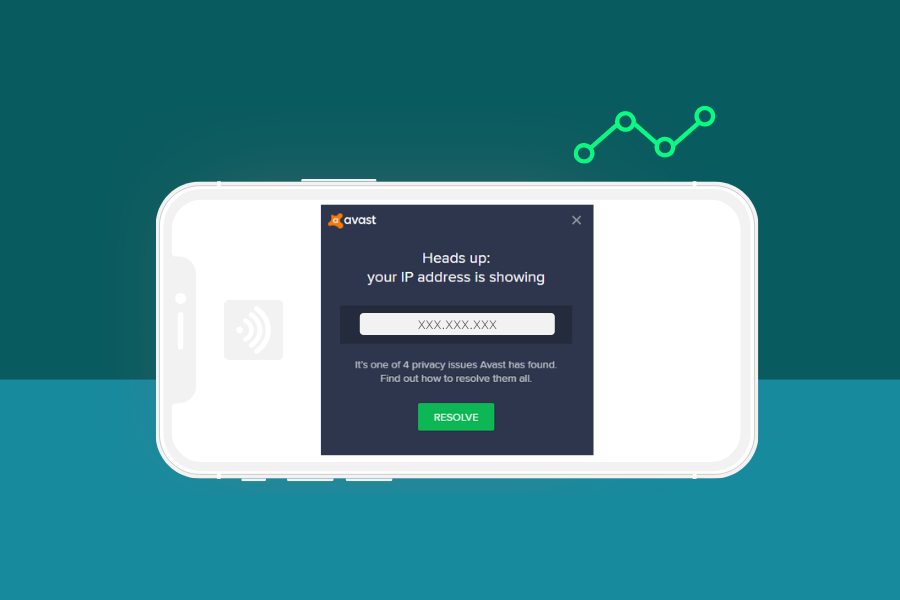
Your iPhone uses two kinds of IP address. The private IP address (also called the local IP address) is handed out by your router and only identifies the phone inside your home or office network. The public IP address is the one websites and apps see, and it belongs to your internet service provider (ISP) or to the network you are connected through.
The two need different fixes. Renewing a lease or typing in a manual address changes only the local network address. It does not change the public IP address that websites see. To get a new IP address that sites can see, you need a VPN, a proxy server or a different network, such as cellular data instead of Wi-Fi.
Keep one limit in mind: changing your IP address does not hide your location from GPS.
How to change IP address on iPhone on your Wi-Fi network
These steps change your private IP on a Wi-Fi network. They are useful when two devices clash over the same address or when a network connection misbehaves.
Renew the Wi-Fi lease
- Open Settings and tap Wi-Fi.
- Tap the i icon next to the network you are connected to.
- Tap Renew Lease.
- Confirm by tapping Renew Lease again.
The router may hand out a new address from its pool, but it can also give the same address back. If nothing changes, the manual method below is the more reliable option.
Set a static IP address manually
- In the same network screen, tap Configure IP.
- Choose Manual.
- Enter an address that no other device on the network is using.
- Save the change.
To find a free address, check your router’s list of connected devices first. If you pick an address already in use, both devices can lose their connection. A static IP address stays fixed until you switch back to automatic, so set Configure IP back to Automatic when you no longer need it.
How to change IP address on iPhone with a VPN
A VPN is the most direct way to change your public IP address. When you connect to a server in the app, you take on that server’s IP address instead of the one from your ISP. It also encrypts your traffic on public Wi-Fi networks.
Steps to use a VPN to change your IP
- Download a VPN app from the App Store. NordVPN and Surfshark both have iOS apps.
- Open the app and sign in.
- Pick a server location from the list, or use the quick connect option.
- Allow the VPN configuration when iOS asks for permission.
- Wait for the app to show that you are connected.
- Open a browser and search for “what is my IP” to confirm the address has changed.
What the two main VPN apps offer
NordVPN says its iOS app lets you change your IP address by choosing a server location in the app, and it backs new subscriptions with a 30-day money-back guarantee.
Surfshark lists more than 4,500 servers in 100 countries on its iOS page. It also has a rotating IP feature that changes your address every few minutes without disconnecting. Its 30-day refund applies to subscriptions bought through Surfshark’s website. If you subscribe through the App Store, Apple’s refund terms apply instead.
Free VPNs and a free proxy can also swap your address, but you should be careful with them. A VPN or proxy server sees your traffic, so use a trusted VPN with a clear privacy policy.
Use iCloud Private Relay to hide your IP address
Private Relay is part of iCloud+. It protects your browsing in Safari by sending traffic through two relays. Apple runs the first and a third-party content provider runs the second, so your real IP is hidden from the sites you visit. Apple publishes a separate guide, “Set up iCloud Private Relay on all of your devices”, for the setup steps.
It has limits you should know about:
- It is not available in all countries or regions.
- Some sites may ask for extra sign-in steps because your IP address is hidden.
- It can make speed tests look slower.
- It covers Safari and some Apple services, so other apps and browsers can still expose your IP address, according to one explainer.
- Researchers Tommy Mysk and Talal Haj Bakry reported that passkey validation can reveal your real IP address while Private Relay is on.
If you need your public IP address to change across all your apps, a VPN is the safer choice.
Other ways to get a different IP address
- Switch from Wi-Fi to cellular data. Your iPhone then uses an address from your mobile carrier instead of your router’s connection.
- Join another Wi-Fi network. A café, office or friend’s network gives you a different public address.
- Restart your router. Many ISPs assign dynamic IP addresses, so a restart can sometimes bring a new one. Whether it does depends on your provider.
Finding your IP address on iPhone
To see your private address, go to Settings, tap Wi-Fi, then tap the i icon next to your network. The IP Address line shows it. To see your public address, open Safari and search for “what is my IP”. Check both before and after you make a change so you know it worked.
How to change IP address on iPhone FAQs
Can I change my IP address on iPhone without a VPN?
Yes, but only the local address. Renewing the Wi-Fi lease or setting a manual address changes your private IP, while switching to cellular data or another network gives you a different public IP address.
Does renewing the lease change my public IP address?
No. Renewing the lease asks your router for a local address and has no effect on the public address websites see.
Will a VPN change my IP address on iPhone?
Yes. Once you connect to a server in a VPN app, websites see that server’s IP address instead of the one your ISP gave you.
Does iCloud Private Relay replace a VPN?
Not fully. It protects Safari and some Apple services, so other apps and browsers can still expose your IP address, and it is not available in every country or region.
Can changing my IP address hide my location?
Not from GPS. Changing your IP address alters what websites see, but your iPhone’s location services work separately.
Is it safe to use a free VPN or proxy to change my IP?
It carries more risk than a paid service. A VPN or proxy server can see your traffic, so choose a provider with a clear privacy policy and a money-back guarantee.
Why did my IP address stay the same after I renewed the lease?
Your router can hand back the same address it gave you before. Set a manual address in Configure IP if you need a different one.